
how to clear your cookies and browser cache
Why clear the browser cache?
The browser cache is temporary storage location in your browser that stores copies of files and data to speed up the loading process. However, when websites are updated and files assets change, sometimes cached files can cause problems such as the page not loading correctly or older versions of the webpages being shown. Clearing the browser cache deletes any old files being loaded by your browser, and refreshes to display the most up to date web information.
Clearing the cache
The most common browsers are Google Chrome, Mozilla Firefox, Safari, and Microsoft Edge. Each browser has its own specific cache, and location to clear them. Find the browser you are using below, and follow the instructions to clear the browser cache.
- Google Chrome
- Click the Tools menu in the top right of Chrome.
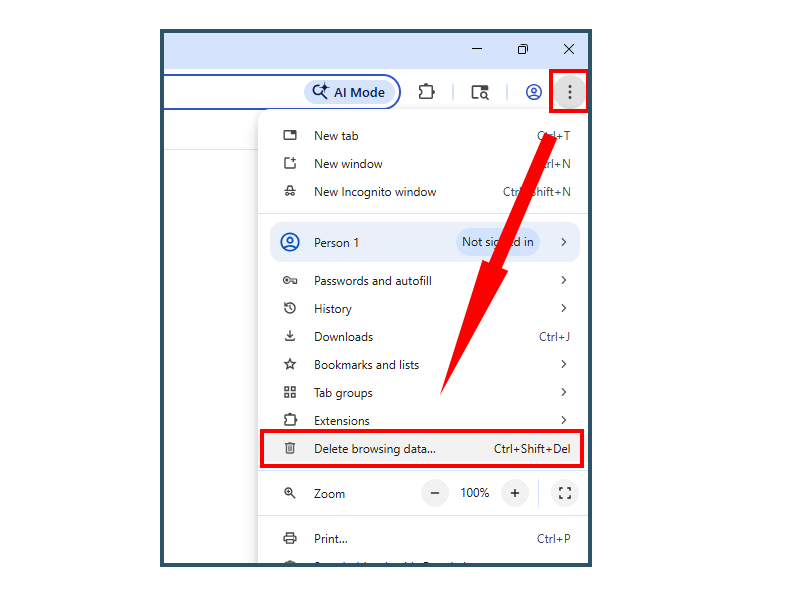
- Select Delete Browsing History...
- Set the Time Range to All Time, and check the boxes for Cookies and other site data and Cached Images and files.
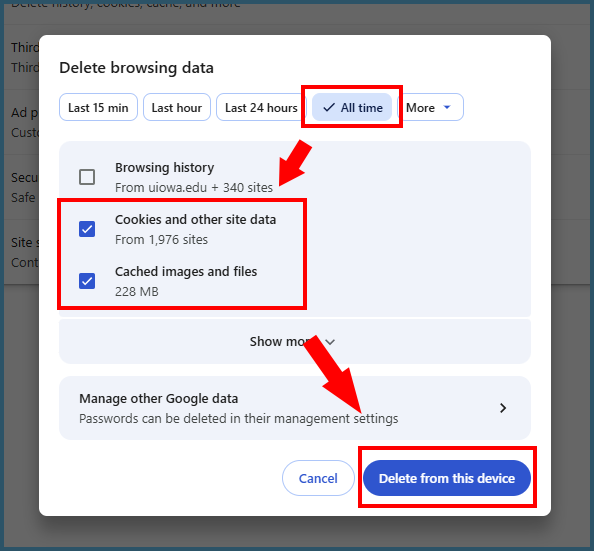
- Select Delete from this device.
- Close and and re-open Chrome for the changes to take affect.
- Click the Tools menu in the top right of Chrome.
- Mozilla Firefox
- Click the Tools menu in the top right of Firefox.
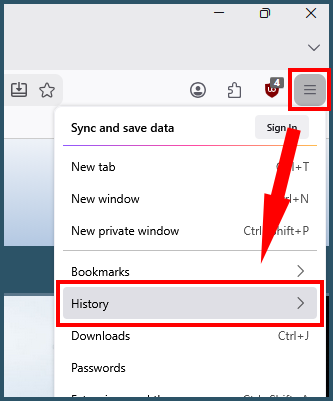
- Select History.
- In the menu, select Clear Recent History.
- Set the Time Range to Everything, and check the boxes for Cookies and site data and Temporary Cached files and pages.
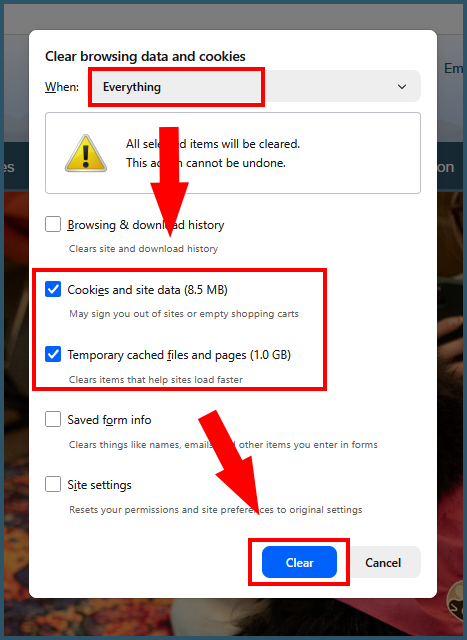
- Select OK.
- Close and and re-open Firefox for the changes to take affect.
- Click the Tools menu in the top right of Firefox.
- Microsoft Edge
- Click the Tools menu in the top right of Edge.
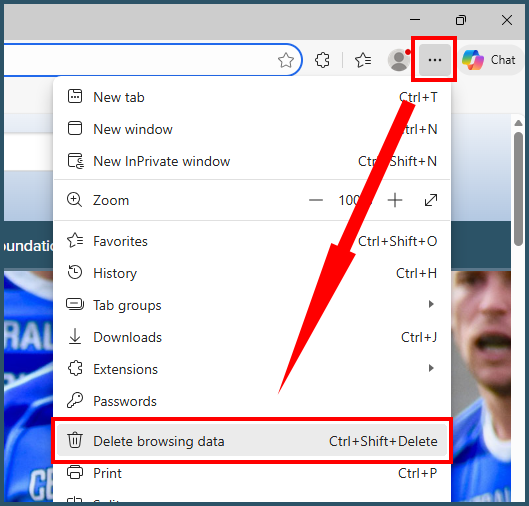
- Select Delete Browsing Data.
- Set the Time Range to All Time, and check the boxes for Cookies and other site data and Cached Images and files.
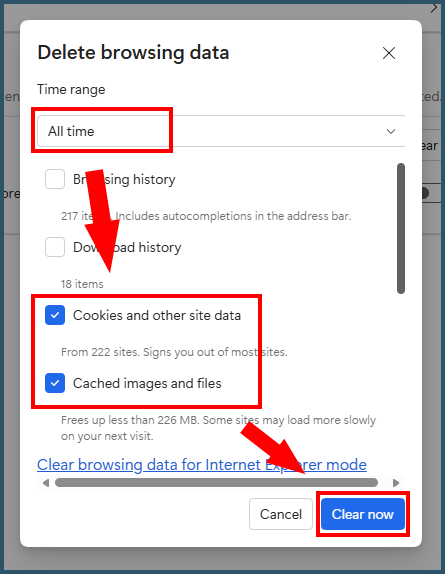
- Select Clear Now.
- Close and and re-open Edge for the changes to take affect.
- Click the Tools menu in the top right of Edge.
- Safari
- Select Safari in the top menu bar.
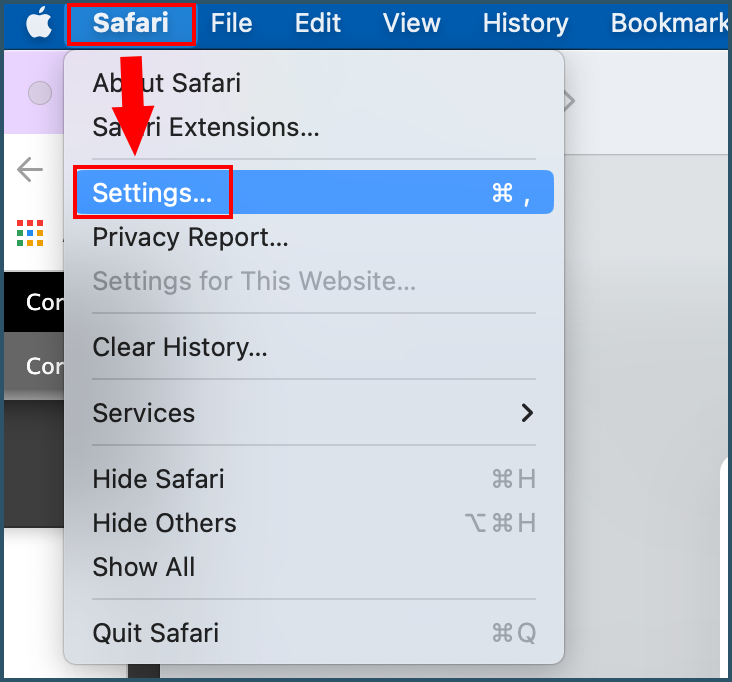
- Select Settings.
- In the menu, select the Privacy tab.
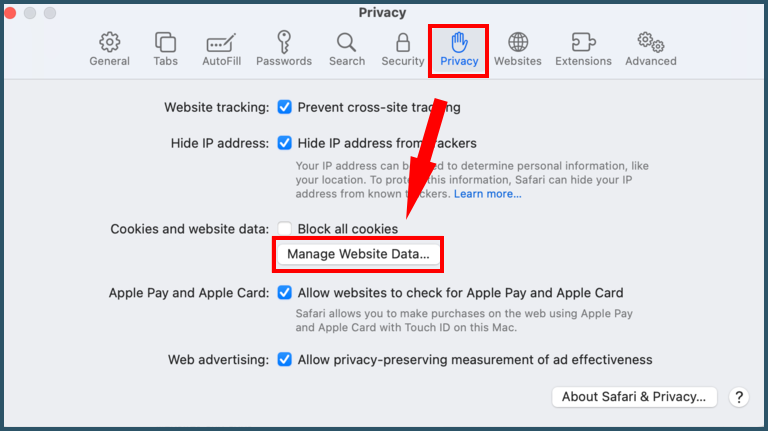
- Select Manage Website Data...
- Click Remove All.
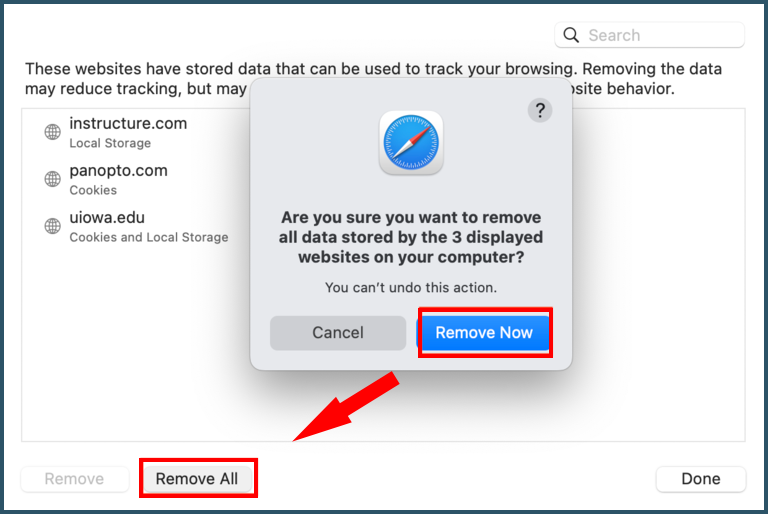
- Click Remove Now.
- Select Safari in the top menu bar.
- Select Quit, then re-open Safari for the changes to take affect.
- Select Safari in the top menu bar.